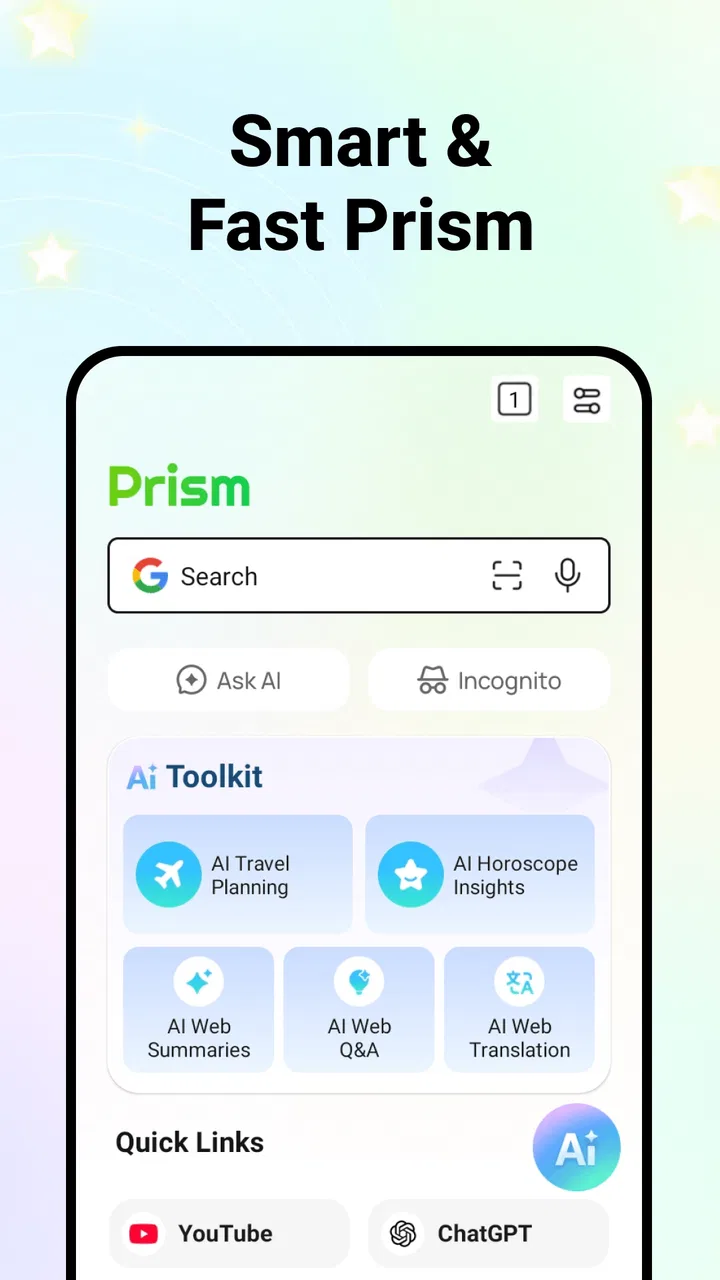
Prism: AI Quick Path Browser
- 4.4
- Rating
- 1.00M
- Installs
- Free
- Price

 Analysis by App-foxy
Prism: AI Quick Path Browser is a free tools app from James c. Ross that takes a deliberately simple approach to getting online. I found it most interesting as an alternative browser for people who want a separate, lightweight place for everyday web access rather than another crowded app filled with extras. Its store summary describes it as a balanced browser for seamless internet access, while the short store description is simply “Prism.” That leaves the real question to the user: does this browser give you enough control and convenience for the way you actually use the web?
My answer is cautious but positive. Prism feels best when I treat it as a focused browsing option for quick searches, reading, opening a page from another app, or keeping web activity apart from my main browser. It is less convincing as a complete replacement for an established browser if I depend heavily on mature syncing, deep account integration, extensive extensions, or a large ecosystem of specialized tools. The app is free and rated for Everyone, which makes trying it easy, but trust still depends on how carefully I handle permissions, sign-ins, and sensitive browsing rather than on a friendly store label alone.
What Prism is trying to do differently
The first thing I noticed about Prism is that its identity is not built around a long list of headline features. It is presented as a browser, and that narrow purpose can be useful. Instead of asking me to learn a complicated dashboard, it encourages a direct workflow: open the app, reach the web, and move on. For someone who only needs a browser for occasional searches, links, articles, forms, or reference pages, that restraint can be more valuable than a large collection of settings.
You May Also Like

 Blood Strike: 2.5 Anniversary
Blood Strike’s Loadouts Turn Every Drop Into a Tactical Gamble
A close look at Blood Strike’s custom loadouts: how fast access to signature weapons reshapes its battle royale rhythm, rewards preparation, and narrows the gap between fights.

 Pandora - Music & Podcasts
Pandora’s Music Is Easy to Start, but Harder to Recover
Pandora’s strength is its low-effort path from a seed to a station. Its weak spot is how much confidence it asks you to place in connection, setup, and quiet recovery.

 8 Ball Pool
 Is Built on Rivalries, Rematches, and Routine
A close look at the rivalries, rematches, shared routines, and unanswered safety questions that turn a quick pool match into a persistent mobile community.

 Samsung Music
’s Quiet Strength Is Playing What You Already Own
Its reach comes less from spectacle than from dependable access to a personal library. That simplicity is both the app’s strongest retention engine and its ceiling.

 AccuWeather: Weather Radar
AccuWeather Review: A Quick, Clear Forecast for Everyday Decisions
For everyday plans, the best forecast is the one you can understand quickly. AccuWeather makes rain timing, radar, and local conditions easy to act on, with a few trade-offs.

 Hill Climb Racing
Why Hill Climb Racing Still Turns Crashes Into One More Run
A tiny car, a bumpy hill and one more upgrade: Hill Climb Racing keeps resurfacing because its simple chaos makes every near-miss feel personal.
More From Our News Desk



At the same time, a minimalist browser has to earn its place beside the browser already installed on a phone. Most Android and iOS users already have a familiar default, and established alternatives often bring years of refinement around passwords, bookmarks, tabs, history, privacy controls, and synchronization. Prism therefore makes the most sense when it solves a particular problem for you: a clean secondary browser, a separate space for selected browsing, or a quick way to open web content without mixing it with your main routine.
The app has reached more than a million installs and holds an average rating of 4.4 from around 7,400 ratings, with 592 written reviews. Those figures suggest that many people find the basic idea useful, but they do not tell me whether it will fit a specific browsing habit. I would read the written feedback alongside my own needs, especially if I expect advanced browser features. A strong rating for a quick-access browser does not automatically mean it can replace a full-featured daily driver.
Prism was released on April 17, 2025, and the current version is 1.0.14. Its relatively young product identity matters when setting expectations. I would approach it as an app that may still be developing its personality and workflow, not as a browser with the enormous maturity of the most established names. That is not a criticism by itself; it simply means I would test the tasks that matter to me before moving all browsing activity into it.
A realistic everyday use case
Imagine receiving a message with a recipe, a repair guide, or a product manual while you are already working in another app. I would use Prism for that single purpose: open the page, read what I need, follow one or two related links, and close the session without turning the task into a larger browsing trail. A separate browser can also be handy when comparing information for a purchase, checking travel details, or reading a page that I do not want mixed with the tabs I keep for work and personal accounts.
There is a practical trade-off here. Separation can make browsing easier to organize, but it can also make the experience less convenient if I need passwords, saved pages, or a synchronized tab from another device. Before choosing Prism for this workflow, I would decide whether the benefit is separation or whether I am simply creating another place to manage. If the latter is true, the default browser may remain the better choice.
Trust begins with visible choices
For a browser, trust is not just about speed or appearance. The app sits between me and nearly every website I visit, so I pay attention to what it asks for, what it remembers, and how clearly it lets me make decisions. Prism’s public positioning gives me a straightforward starting point, but I would still inspect the permission prompts and any privacy or data-related screens shown during setup and normal use. I do not treat a smooth first launch as proof that every privacy detail is ideal.
My preferred approach is to grant only what the app clearly needs at the moment it needs it. If a browsing task works without an optional permission, I leave that permission disabled. I also avoid signing into an account merely to test a page. This is not a Prism-specific accusation; it is a sensible browser habit because the browser can become a gateway to email, shopping, banking, social networks, and work systems.
The safest way to evaluate Prism is to watch the choices it presents, not to assume that a clean interface guarantees a particular data practice. I look for understandable explanations, ordinary system permission dialogs, and settings that let me control the browsing experience without pressure. If a choice affects history, account access, or saved information, I want to see it before committing rather than discover it later.
How I would handle permissions and account access
On first use, I would note every permission request and ask whether it matches the task in front of me. A browser may need access to open web content, but that does not mean I should automatically approve every optional request. If Prism asks for something that seems unrelated to opening and reading pages, I would pause and check the explanation in the system settings before continuing.
I would also keep account use narrow. For public pages, there is no reason to sign in. For private services, I would use Prism only if I am comfortable with the browser’s visible controls and the device’s own security. I would avoid entering payment details or sensitive credentials during an initial trial period, then review the app’s behavior and settings before trusting it with more important tasks. This staged approach gives me a way to test convenience without immediately exposing my entire online routine.
One useful habit is to separate browsing tests into three levels. First, open ordinary public pages and see how navigation feels. Next, try a low-risk account such as a service where losing a session would not create serious trouble. Only after that would I consider private or financial activity. This workflow is more informative than judging Prism from its first screen because it tests both the simple path and the moments when trust matters most.
Data-sensitive moments deserve extra attention
Browsers become complicated at the edges: downloads, redirects, login pages, forms, pop-ups, and links that open another app. These are the moments when I slow down. If a page asks for personal information, I check the address carefully and avoid assuming that a familiar-looking design is legitimate. Prism can provide the window to a website, but I still have to judge the website itself.
I am especially careful with links received through messages. If a page requests a password reset, payment confirmation, or identity information, I would close it and open the service through a route I already trust instead of continuing from the message. Using a different browser does not remove phishing risk. In fact, a secondary browser can make me less familiar with the visual cues I normally rely on, so I would be more deliberate rather than less.
Downloads are another point where I would keep control. I would not open an unexpected file simply because Prism displays a download prompt, and I would check the file type and source before using it. For documents containing private information, I would avoid leaving them in a shared or temporary browsing workflow unless I know how Prism handles them. The important lesson is that a browser’s convenience should never replace a quick security check.
Private browsing, if available in the version I use, should not be treated as invisibility. A private session can reduce local traces in some situations, but it does not make a user anonymous to websites, networks, or services. I would use any such mode for a limited local-purpose workflow, not as a promise of complete privacy. If my main reason for changing browsers is strong anonymity or advanced tracking protection, I would compare Prism carefully with a browser built specifically around those goals.
Where the app fits beside familiar alternatives
Compared with a mainstream browser, Prism’s appeal is focus. A well-established browser is usually the safer choice for people who rely on synchronized bookmarks, saved passwords, open tabs across devices, extensions, translation tools, or years of browser history. Those features are not luxuries when they are part of a daily workflow. Rebuilding them in a newer or simpler browser can create more friction than it removes.
Compared with a privacy-first browser, Prism should be judged by the controls I can actually see and use rather than by assumptions attached to the word “balanced.” If privacy is my primary requirement, I would choose the option whose settings, explanations, and data practices match that requirement most clearly. If speed of access and a less crowded experience matter more, Prism may be the more comfortable experiment.
Compared with a specialized browser that includes built-in productivity tools, Prism may feel intentionally limited. That can help on a modest task because fewer controls compete for attention. It can also become frustrating when I need advanced tab management, automation, extensions, or detailed site controls. I would not install it expecting a full replacement for every browser category; I would install it to see whether its focused approach improves a particular part of my routine.
Three practical tests I recommend before committing
My first test would be a link-management test. I would open several links from messages, notes, and another app, then observe whether Prism fits naturally into that handoff. The goal is not merely to see whether pages load. I want to know whether returning to the original task feels easy, whether I can find the page I just opened, and whether the browser encourages accidental tab clutter.
My second test would be a privacy-control test. I would inspect the settings before signing in anywhere, review what can be cleared, and check whether the controls use language I understand. I would then close and reopen the app to see whether my chosen behavior remains clear. This is a small but revealing workflow: a browser that makes ordinary cleanup difficult is not a good fit for someone who wants tight control over local browsing traces.
My third test would be a compatibility test using the websites I actually need. I would try a reading page, an interactive form, a media-heavy site, and a service that requires authentication. I would not rely on a generic benchmark because my decision depends on real destinations. If one important site behaves poorly, that weakness may outweigh a pleasant interface everywhere else.
A fourth test is worth adding for people who share devices or move between personal and work contexts. I would examine whether my browsing habits remain clearly separated from other users and whether I can avoid exposing an account through autofill or an open session. If Prism does not give me enough confidence in that separation, I would keep it for public browsing only and use a more established option for private accounts.
Who should try Prism, and who should skip it
I think Prism is worth trying if you want a free secondary browser for quick web access, temporary research, link opening, or a cleaner separation between different kinds of browsing. It may also suit someone who feels overwhelmed by a feature-heavy browser and prefers to start with a focused tool. The Everyone age rating makes it approachable for a broad audience, although parents and guardians should still teach safe browsing habits because the rating does not remove the risks found on the web.
I would be more hesitant to recommend it as the only browser for someone who depends on a mature password workflow, extensive synchronization, advanced privacy features, or a large collection of extensions. I would also skip it if I wanted a browser selected primarily for strong anonymity or highly specialized productivity tools. In those cases, a browser designed around that exact priority is likely to be a better match.
People who frequently use banking, workplace systems, or sensitive medical services should take a slower approach. I would first understand Prism’s visible permission and account controls, then test it with low-risk pages. There is no benefit in moving important activity simply because a new browser looks convenient. The right choice is the one whose controls I can understand and whose limitations I can work around.
My final view after weighing convenience against control
Prism: AI Quick Path Browser has a sensible place in my app collection, but I see it as a focused option rather than an automatic replacement for the browser I already know. Its free price removes the main barrier to testing, and its straightforward identity may appeal to people who want to reach the web without carrying a large set of browser features. The developer is James c. Ross, and the app’s growing install base and solid average rating show that the concept has found an audience.
Still, I would make the decision through use rather than reputation. I would check permissions, examine account-related choices, test the sites I depend on, and keep sensitive activity out of the app until I was comfortable with its controls. That process is especially important because browsers handle more personal information than their simple interface suggests.
My recommendation is to treat Prism as a useful trial browser with a clear job, not as a universal answer. Use it for quick paths to public information, separated browsing, and everyday links if those tasks feel natural. Keep a more mature alternative for workflows that depend on deep synchronization, extensive customization, or specialized privacy protections. If Prism gives you the control and simplicity you want after those practical tests, it can earn a permanent place on your device; if not, there is no reason to force it into a role it was never meant to fill.
FAQs for Prism: AI Quick Path Browser
01What is Prism: AI Quick Path Browser?
Prism: AI Quick Path Browser is an innovative web browser designed for both Android and iOS platforms. It utilizes AI technology to streamline your browsing experience by predicting your search needs and suggesting relevant content. With its user-friendly interface and rapid loading times, it aims to enhance productivity and web navigation.
02How does the AI feature in Prism improve my browsing experience?
The AI feature in Prism analyzes your browsing habits and preferences to offer personalized content recommendations. It predicts what you might want to explore next, significantly reducing search times. This intelligent browsing approach ensures you access relevant information quickly, improving overall efficiency and user satisfaction.
03Is Prism: AI Quick Path Browser safe to use?
Yes, Prism prioritizes user safety by incorporating robust privacy measures and secure browsing protocols. It offers features such as private browsing and ad-blocking to protect your data from trackers and unwanted ads. Regular updates ensure that the browser's security features are up-to-date, providing a safe browsing environment.
04What are the main features of Prism: AI Quick Path Browser?
Prism offers several standout features, including AI-driven content recommendations, a sleek and intuitive interface, fast page loading speeds, and customizable themes. It also supports multiple tabs, private browsing, and ad-blocking. These features combine to create a seamless and efficient browsing experience tailored to individual user preferences.
05Are there any limitations or downsides to using Prism: AI Quick Path Browser?
While Prism offers many advantages, it may require some time to adjust to its AI-driven suggestions. Users who prefer more manual control over their browsing might find the predictive features less appealing. Additionally, the browser's performance can vary depending on the strength of your internet connection and device capability.
Pros
- Fast and intuitive user interface.
- Advanced AI-driven search capabilities.
- Customizable themes and layouts.
- Seamless integration with cloud services.
- Efficient data compression for faster load.
Cons
- Limited offline browsing features.
- Occasional ads in the free version.
- Compatibility issues with older devices.
- Some advanced features require subscription.
- Limited language support in AI responses.

Prism: AI Quick Path Browser
Gallery